01
Choose Customer Support
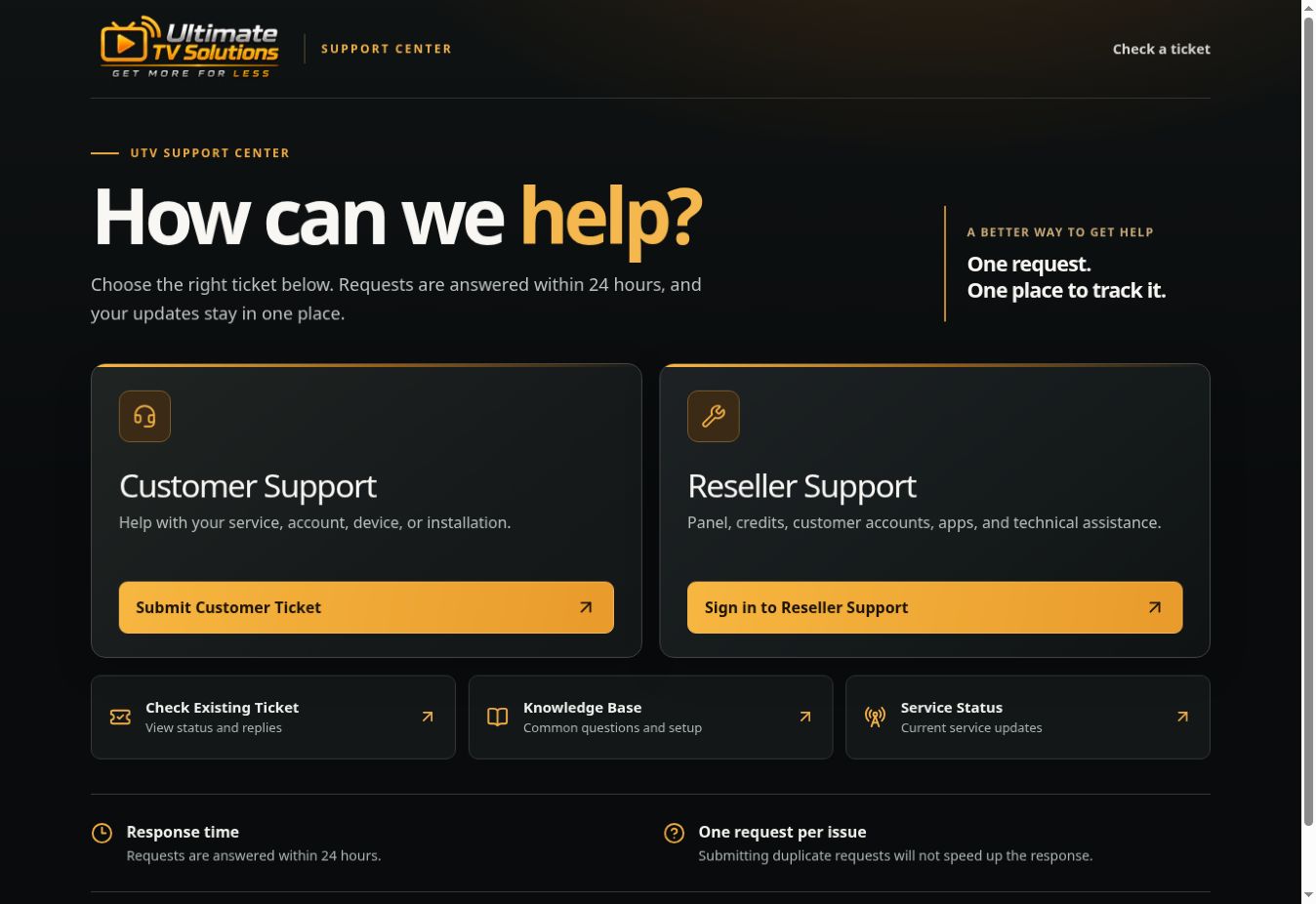
On the Support Center homepage, select Submit Customer Ticket. You do not need a reseller login.

Follow the steps for your account. Have a photo or screenshot of the problem ready before you start.
On the Support Center homepage, select Submit Customer Ticket. You do not need a reseller login.
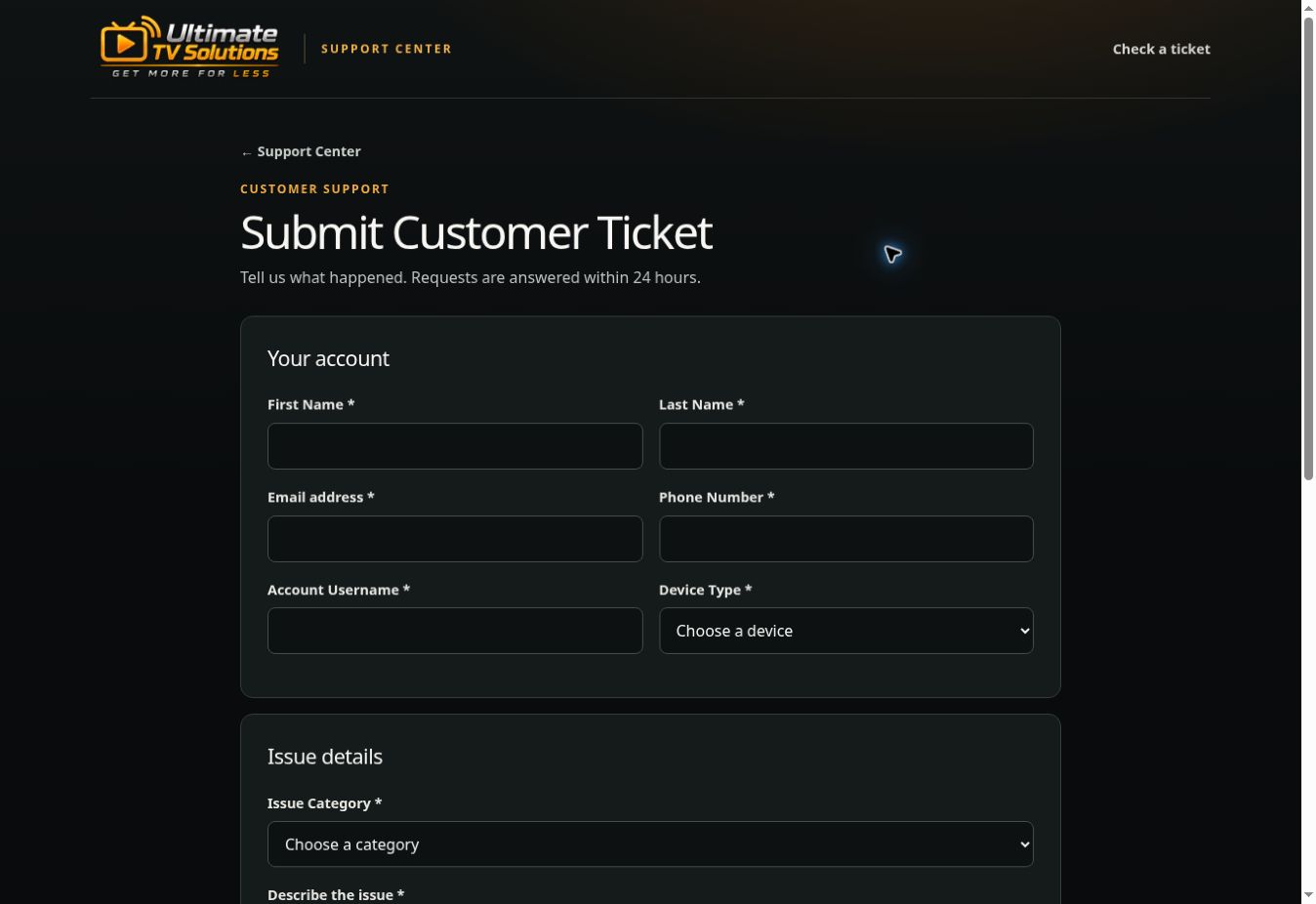
Enter your name, email, phone number, account username, and device type. Use contact information you can access so you can check the ticket later.
Choose the closest Issue Category. Relevant help articles appear when you choose one. Describe what happens, include any error message, mark what you have tried, and attach a clear photo or screenshot.
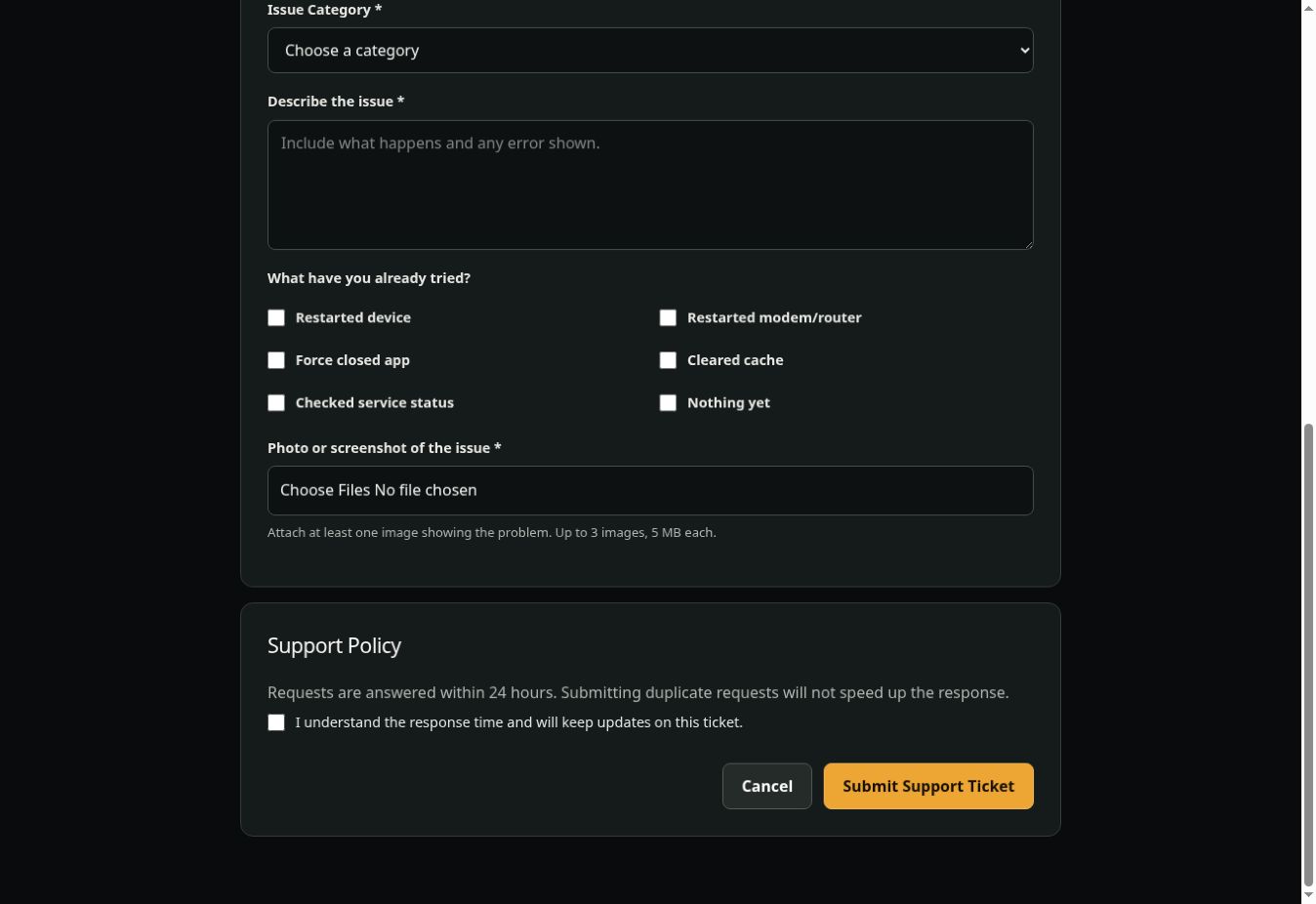
Check the support policy box and select Submit Support Ticket. The confirmation screen gives you a ticket number. Save it, then use Check Existing Ticket with the same email or phone number to see status and replies. Add updates to that ticket instead of opening a duplicate.
Enter your support username and password at Reseller Support. If you have not set a password, use the setup email sent by UTV. If you forgot your login, select Forgot your username or password?
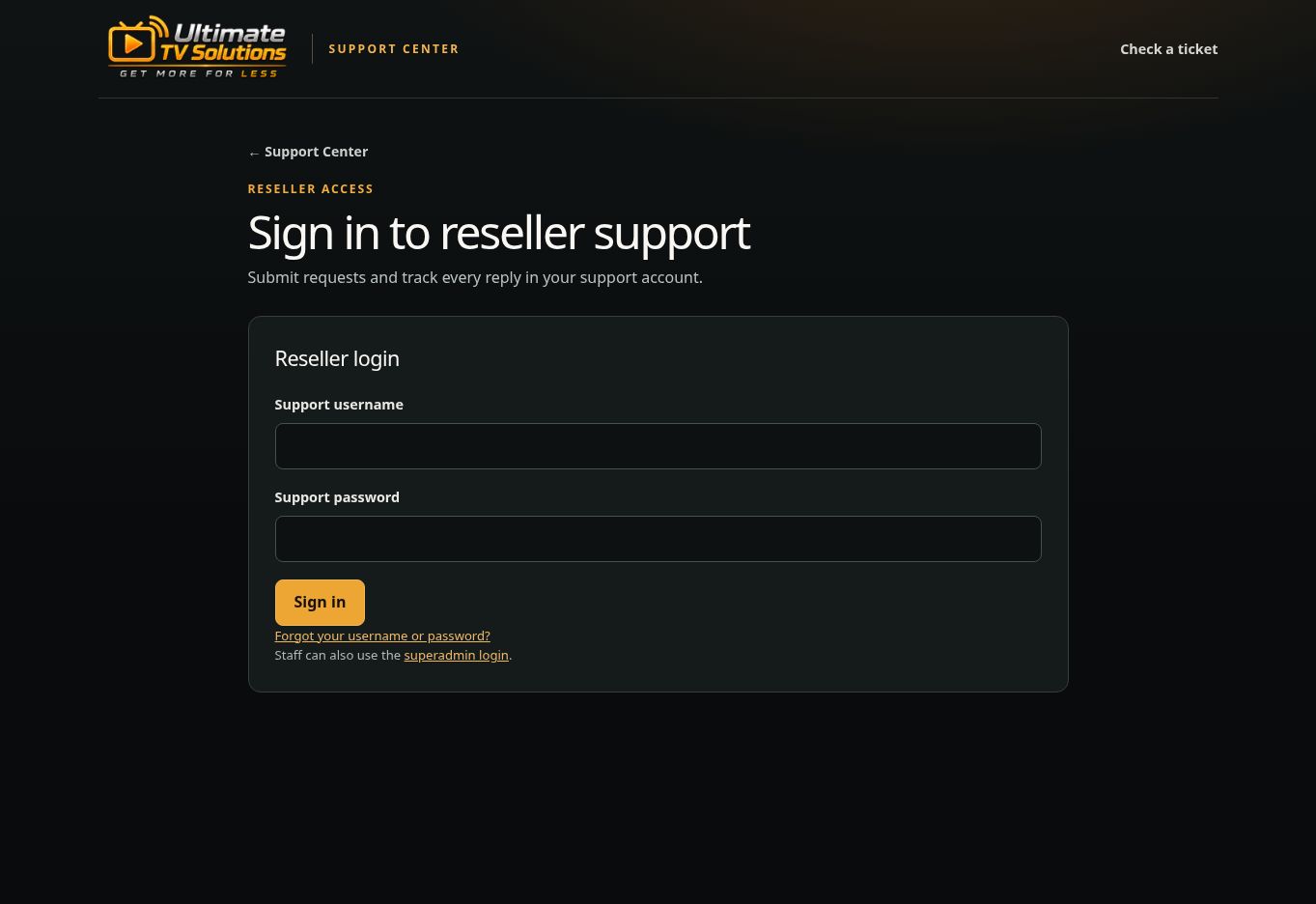
In your reseller portal, select + New reseller ticket. Your name, brand, and email are filled in from your support account. Enter your phone and Panel / Service. Add the affected customer username and device if the issue involves one.
+ New reseller ticket ↗Choose the closest category and check any suggested help articles. Explain what is failing, which account or service is affected, when it started, and what you already tried. Add a photo or screenshot that shows the problem.
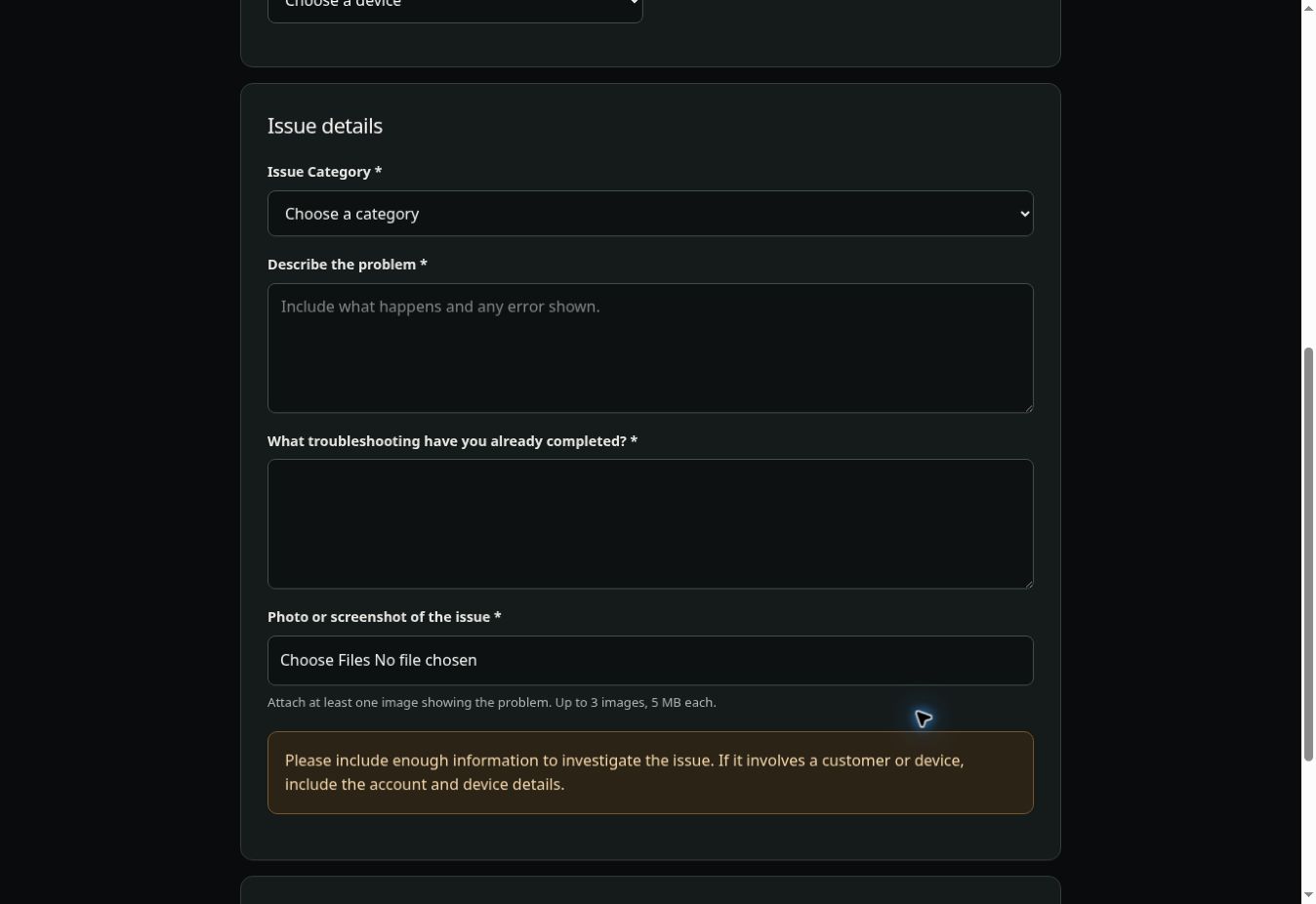
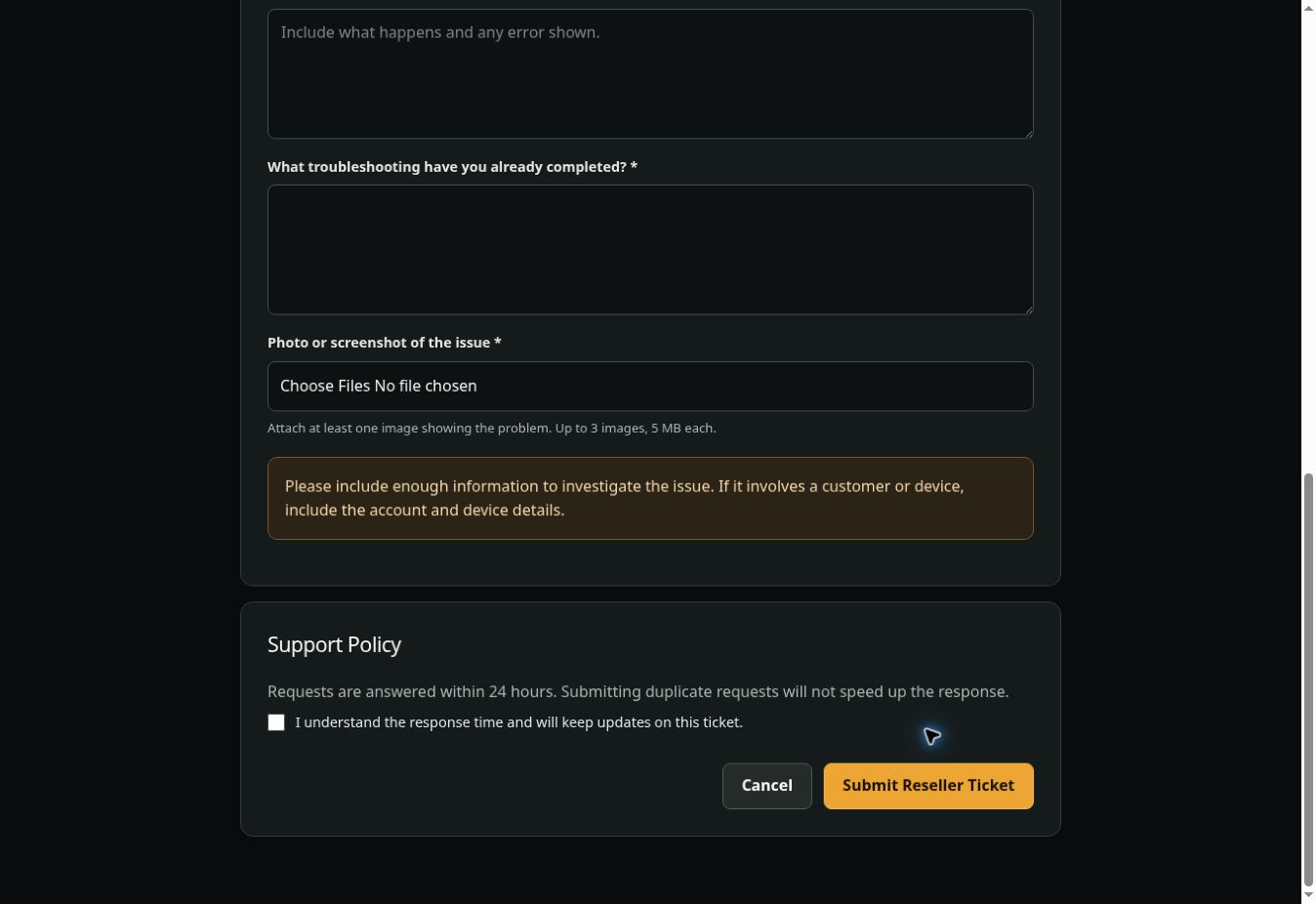
Check the support policy box and select Submit Reseller Ticket. The confirmation page shows your ticket number. Use My Reseller Tickets in your portal to read replies and add updates to that same ticket.